




Kijan Pou Rezoud Pwoblèm Oratè iPhone Ki Pa Fonn?

Fonksyon haut-parleur sou yon iPhone fè li fasil pou jwi konvèsasyon men lib, rantre nan apèl konferans, oswa tou senpleman tande moun k ap rele yo pi klè. Sepandan, li ka fwistre lè w ap fè oswa resevwa yon apèl epi w dekouvri ke bouton Oratè a gri. Piske opsyon an enfim, tape li pa gen okenn efè, sa ki fè ou pa ka chanje odyo a nan oratè a.
Nan gid sa a, nou pral eksplike an bref poukisa oratè iPhone a vin gri pandan apèl yo epi nou pral gide w nan solisyon ki pi efikas yo.
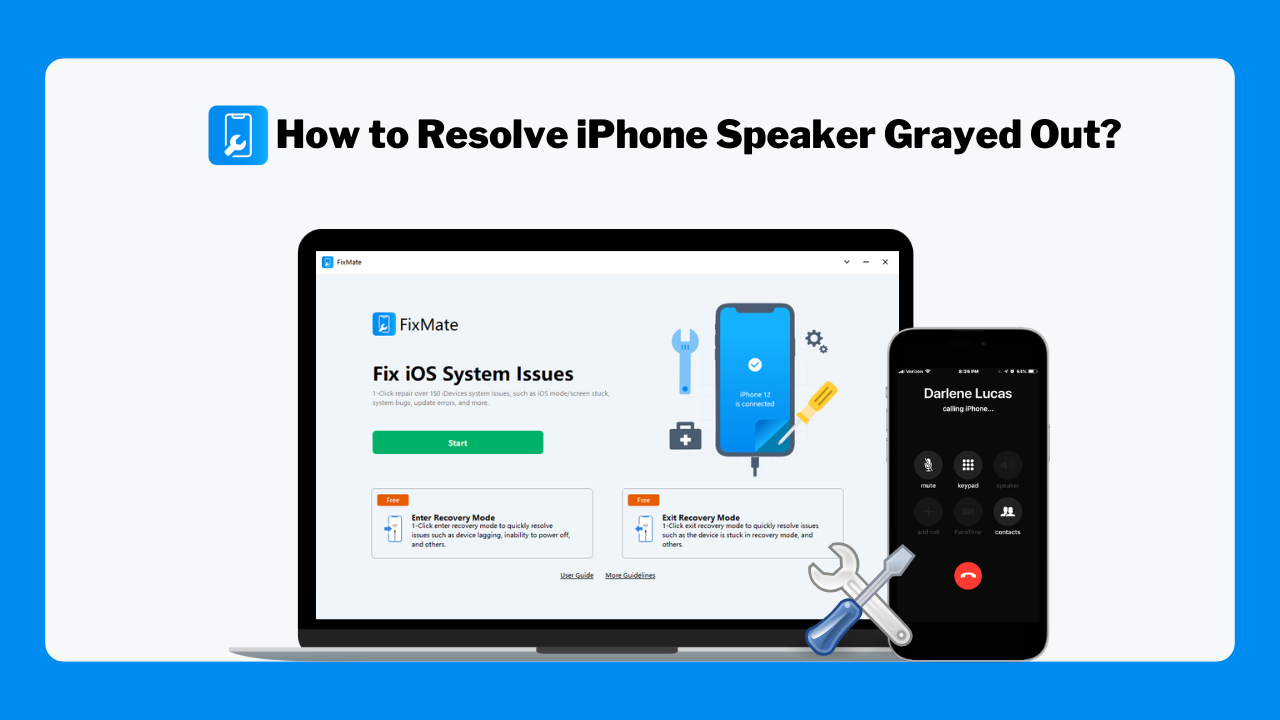
1. Poukisa Oratè iPhone a pa klere pandan apèl yo?
Gen plizyè rezon posib ki fè bouton Oratè a pa disponib pandan apèl telefonik, tankou:
- Pwoblèm iOS tanporè ki entèfere ak aplikasyon telefòn nan oswa sèvis odyo yo.
- Koneksyon Bluetooth ki voye odyo a nan kas ekoutè san fil, oratè, oswa machin ou olye de iPhone nan.
- Vèsyon iOS ki demode oswa ki gen pwoblèm ki gen pinèz lojisyèl ki afekte fonksyon apèl yo.
- Pwoblèm mikwofòn , piske oratè a depann sou tou de oratè a ak mikwofòn nan pandan konvèsasyon yo.
- Fichye sistèm ki pèvèti ki koze pa mizajou ki entèwonp oswa erè lojisyèl.
- Domaj sou pyès ki nan konpitè , tankou yon mikwofòn, yon oratè, yon chip IC odyo, oswa konpozan entèn ki gen pwoblèm apre yon tonbe oswa ekspozisyon a dlo.
Erezman, ou ka ranje anpil pwoblèm ki gen rapò ak lojisyèl san ou pa bezwen ranplase iPhone ou.
2. Kijan Pou Rezoud Pwoblèm Oratè iPhone Ki Pa Fonn Nan Koulè Gri?
Eseye metòd sa yo nan lòd, kòmanse avèk solisyon ki pi senp yo.
Metòd 1: Rekòmanse iPhone ou a
Rekòmanse iPhone ou a rafrechi pwosesis sistèm yo epi souvan efase pinèz lojisyèl tanporè yo.
Etenn iPhone ou > Tann anviwon 30 segonn > Relimen l > Fè yon apèl epi tcheke si bouton Oratè a aktif.
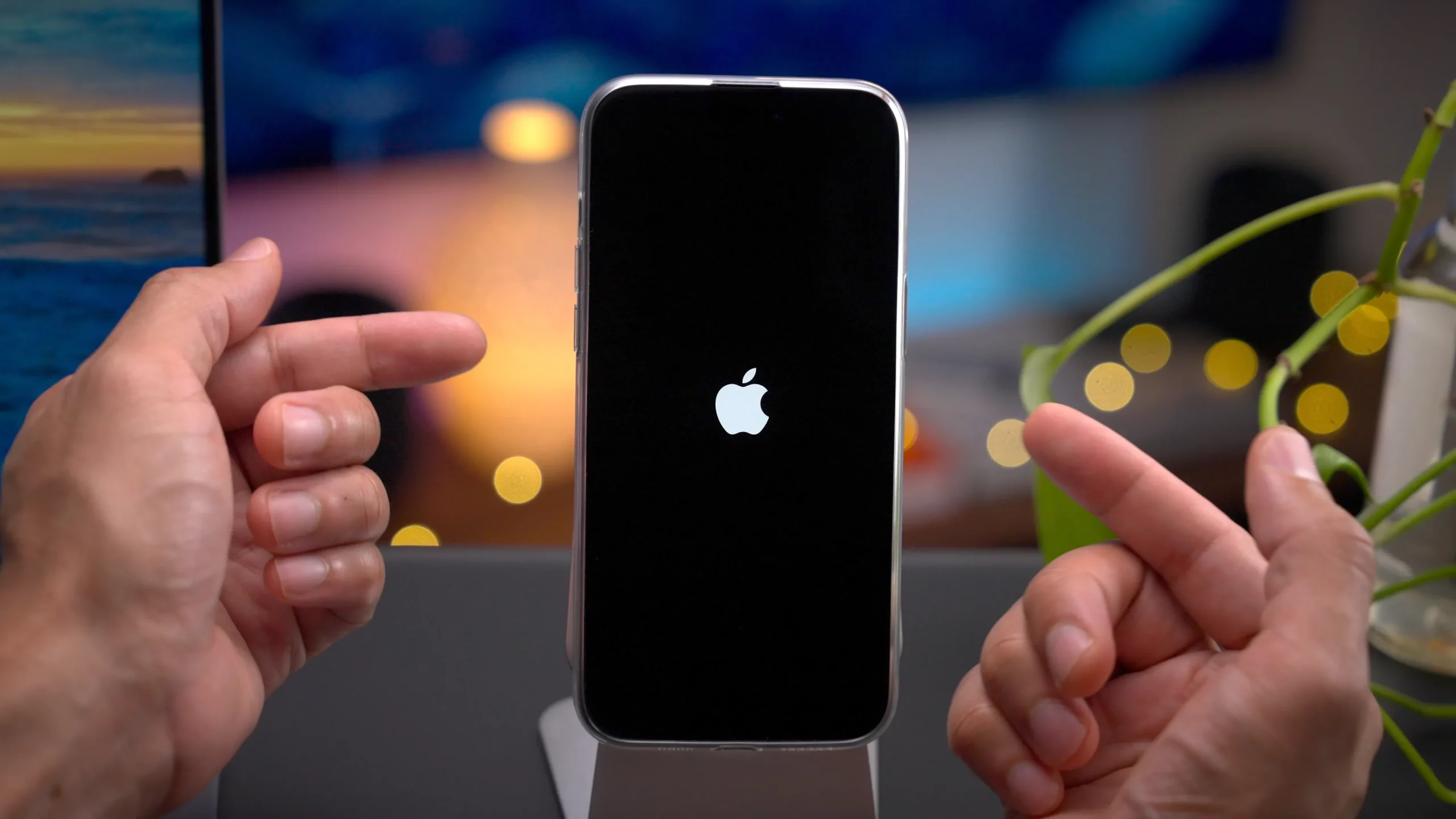
Etap rapid sa a rezoud anpil ti pwoblèm iOS.
Metòd 2: Dekonekte Aparèy Bluetooth yo
Si iPhone ou a konekte ak yon aparèy Bluetooth, odyo apèl la ka redireksyon otomatikman.
Pou dekonekte Bluetooth la:
- Ouvri Anviwònman > Bluetooth > Etenn Bluetooth la tanporèman.
- Dekonekte nenpòt kas ekoutè, ekoutè, oratè, oswa sistèm machin ki konekte.
- Fè yon lòt apèl nan telefòn.
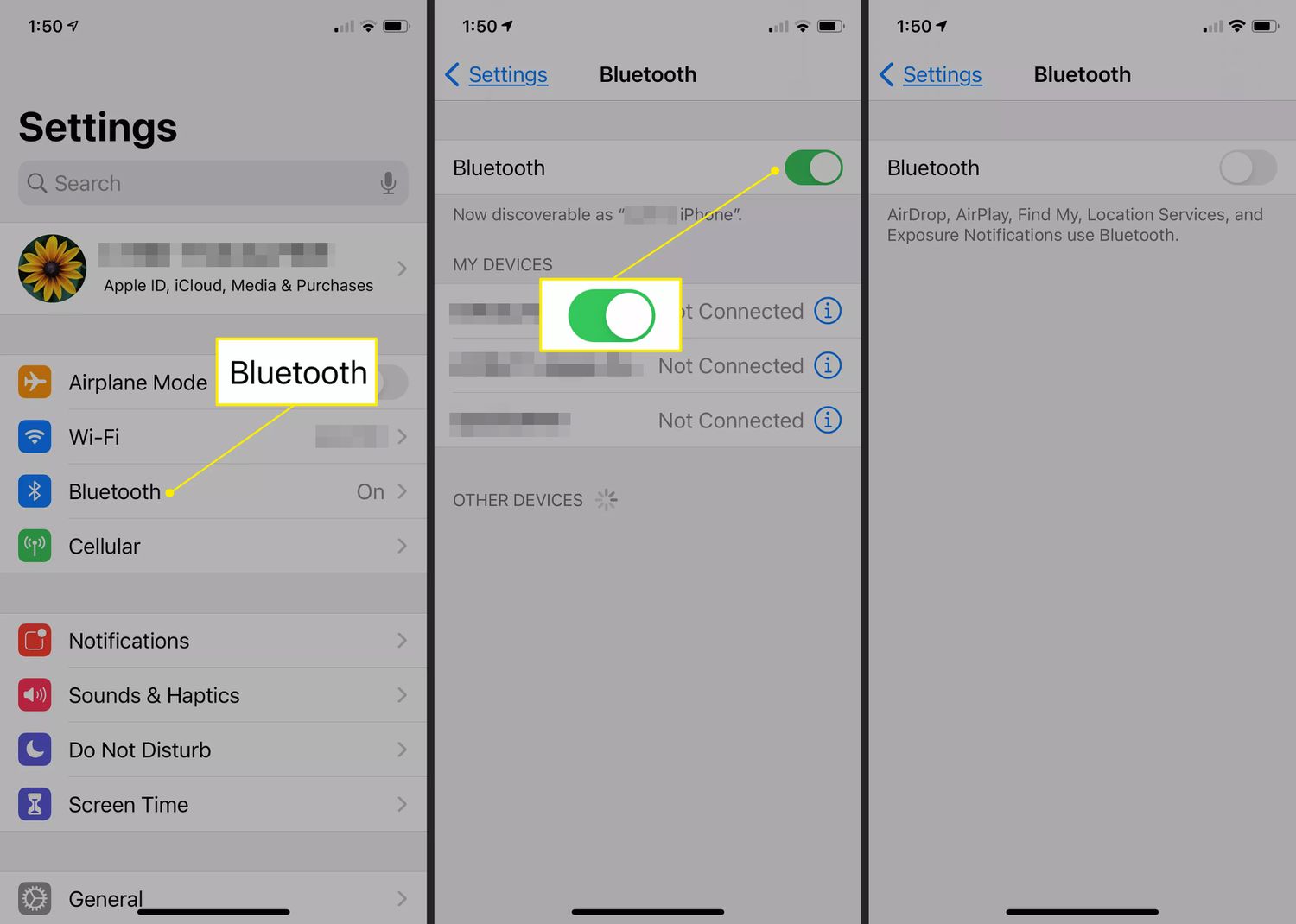
Si bouton Oratè a fonksyone ankò, koneksyon Bluetooth la gen plis chans pou l te lakòz pwoblèm nan.
Metòd 3: Mizajou iOS
Apple souvan pibliye mizajou ki ranje pwoblèm ki afekte apèl telefonik ak fonksyon odyo yo.
Pou mete iOS ajou:
Vizite
Anviwònman> Jeneral> Mizajou lojisyèl
pou tcheke si gen mizajou, apresa telechaje epi enstale dènye vèsyon iOS la si li disponib.
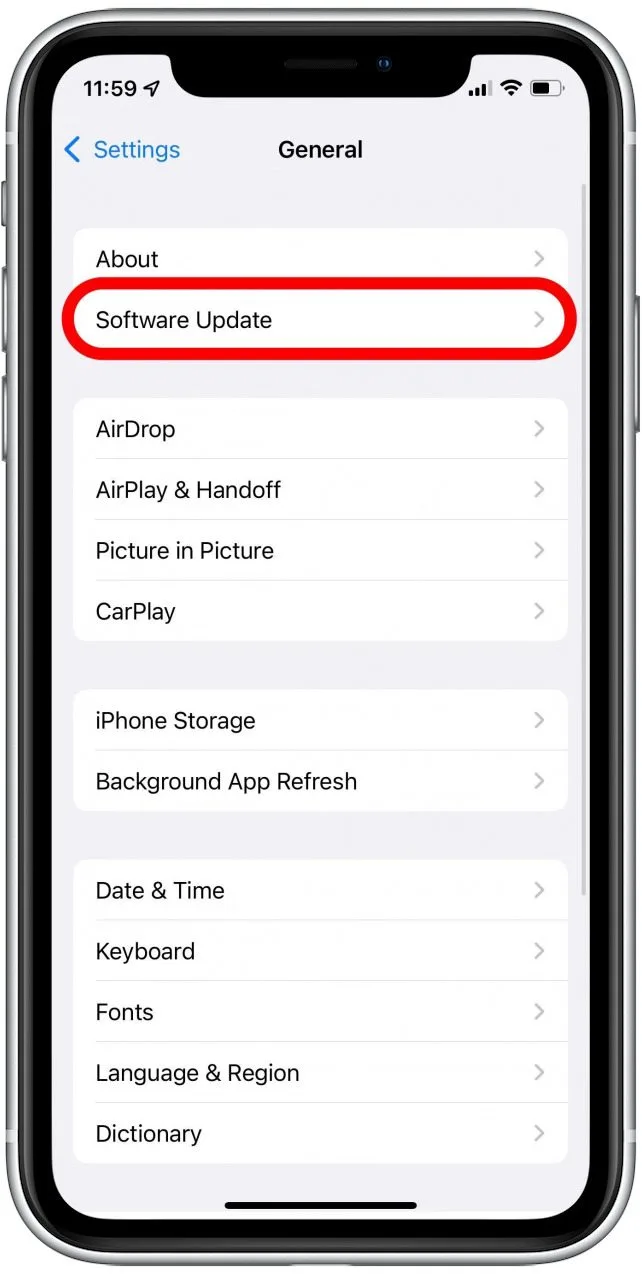
Rekòmanse iPhone ou apre aktyalizasyon an fini.
Metòd 4: Teste mikwofòn nan
Yon mikwofòn ki pa fonksyone byen ka anpeche oratè a aktive.
Eseye tès sa yo:
- Anrejistre yon memo vokal.
- Anrejistre yon videyo avèk aplikasyon Kamera a.
- Aktive Siri.
- Fè yon apèl odyo FaceTime.
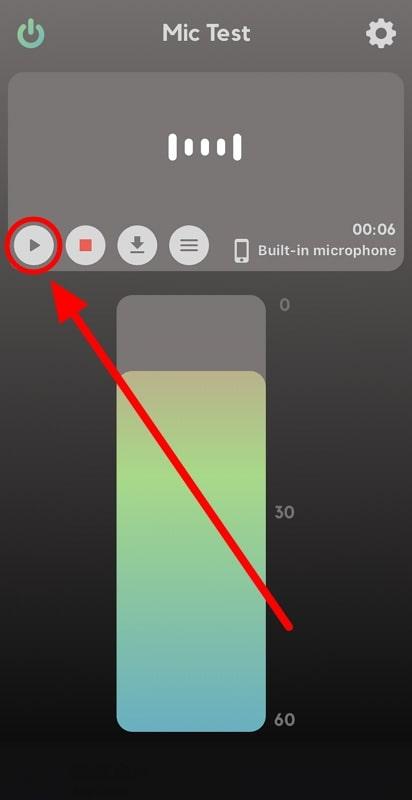
Si mikwofòn nan pa fonksyone nan okenn aplikasyon, li ka bezwen reparasyon.
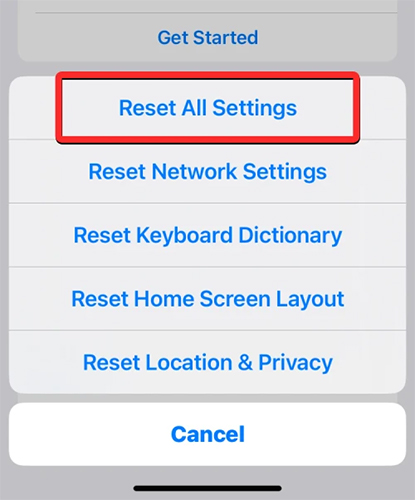
Metòd 5: Reyajiste tout paramèt yo
Paramèt ki pa kòrèk oswa ki pèvèti kapab afekte fonksyon sistèm nan tou.
Pou retabli tout bagay:
Ouvri
Anviwònman
epi tape
Jeneral
> Chwazi
Transfere oswa Reyajiste iPhone
, apresa tape
Reyajiste
> Chwazi
Reyajiste tout Anviwònman yo
.
Si mikwofòn nan pa fonksyone nan okenn aplikasyon, li ka bezwen reparasyon.
Metòd 6: Retabli iPhone ou a
Si okenn nan solisyon anvan yo pa mache, retabli iPhone ou a ka elimine pi gwo koripsyon lojisyèl.
Anvan restorasyon:
- Fè yon kopi done enpòtan ou yo.
Lè sa a:
- Konekte iPhone ou a ak òdinatè w la.
- Louvri Finder (Mac) oubyen iTunes (Windows).
- Chwazi aparèy ou an.
- Chwazi Retabli iPhone.
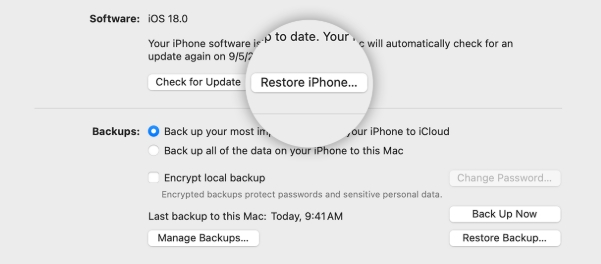
Yon fwa restorasyon an fini, teste oratè a anvan ou restore backup ou a si sa posib.
Metòd 7: Repare Sistèm iOS la avèk AimerLab FixMate
Si oratè iPhone ou a rete gri apre depanaj debaz la, pwoblèm nan ka soti nan dosye sistèm iOS ki pèvèti. Nan ka sa a, AimerLab FixMate ofri yon fason senp pou repare pwoblèm ki gen rapò ak sistèm nan san yo pa bezwen konesans teknik avanse.
AimerLab FixMate se yon zouti reparasyon iOS ki fèt pou repare yon pakèt pwoblèm lojisyèl, tankou:
- Bouton Oratè a pa klere pandan apèl yo
- iPhone kole sou logo Apple la
- Boukl Mòd Rekiperasyon
- Ekran glase oswa nwa
- Echèk bòt
- Lòt erè komen nan sistèm iOS la
Etap pou repare iPhone ou a avèk AimerLab FixMate:
- Telechaje epi enstale AimerLab FixMate sou òdinatè w la (Windows oubyen Mac).
- Lanse pwogram nan epi konekte iPhone ou a avèk yon kab USB.
- Klike sou Ranje Pwoblèm Sistèm iOS, klike sou Kòmanse epi chwazi Reparasyon Estanda, ki repare sistèm nan san efase done pèsonèl ou nan pifò ka yo.
- Telechaje pake firmwèr rekòmande a, epi kite lojisyèl la konplete pwosesis reparasyon an.
- Apre iPhone ou a rekòmanse, fè yon apèl pou tcheke si bouton Oratè a ap fonksyone ankò.
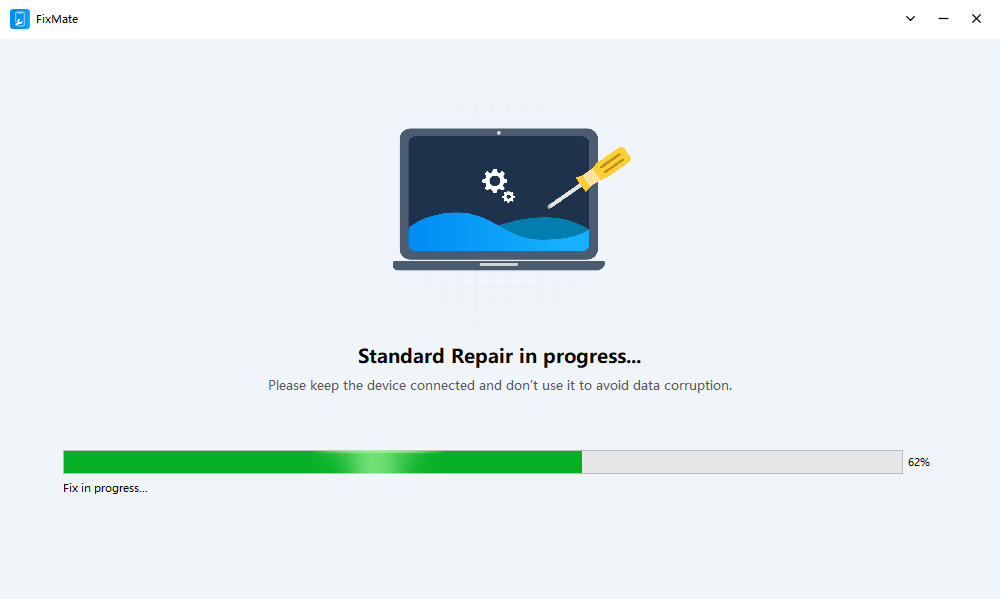
Si pwoblèm nan gen rapò ak lojisyèl, FixMate ka souvan retabli fonksyonalite nòmal san li pa bezwen yon reset faktori.
3. Konklizyon
Yon bouton Oratè ki gri pandan apèl iPhone ka koze pa pwoblèm lojisyèl, konfli Bluetooth, vèsyon iOS ki pa ajou, fichye sistèm ki pèvèti, oswa domaj pyès ki nan konpitè. Nan anpil sitiyasyon, solisyon senp tankou rekòmanse iPhone ou, dekonekte aparèy Bluetooth, mete iOS ajou, oswa retabli paramèt yo sifi pou retabli fonksyon oratè a.
Si metòd sa yo pa rezoud pwoblèm nan,
AimerLab FixMate
bay yon solisyon efikas pou repare pwoblèm sistèm iOS ki ka anpeche bouton Oratè a fonksyone byen. Avèk yon koòdone fasil pou itilize ak mòd Reparasyon Estanda li a, li ka rezoud anpil pwoblèm ki gen rapò ak lojisyèl san li pa efase done pèsonèl ou yo.
Si pwoblèm nan pèsiste menm apre reparasyon sistèm nan ak yon restorasyon konplè, li pwobabman akòz yon pann pyès ki nan konpitè, epi kontakte Sipò Apple oswa yon sant reparasyon otorize se pi bon pwochen etap la. Lè w suiv metòd depanaj ki anwo yo, ou ka idantifye kòz pwoblèm nan epi amelyore chans ou pou oratè iPhone ou a fonksyone nòmalman ankò.
- Ki jan yo parodye Pokemon ale sou iPhone?
- Apèsi sou Aimerlab MobiGo GPS Location Spoofer
- Ki jan yo chanje kote sou iPhone ou a?
- Top 5 fo GPS Location Spoofers pou iOS
- Definisyon GPS Kote Chèche ak Sijesyon Spoofer
- Ki jan yo chanje pozisyon ou sou Snapchat
- Ki jan yo jwenn / pataje / kache kote sou aparèy iOS?